Everything you need to run a private lending book from onboarding to portfolio ROI.
Introduction
What Lendra is, and the problem it solves.
Lendra is a loan management system built for private lenders: people lending their own capital to borrowers, not a bank or a fintech platform. It replaces spreadsheets and scattered notebooks with one workspace: borrowers, loans, repayments, penalties, a payment calendar, and a separate investment tracker for capital placed outside the loan book.
Every number on the dashboard, every penalty calculation, and every printed contract comes from the same local database, so there's one source of truth for the whole lending business.
Lendra is local-first. Your borrowers, loans, payments, and uploaded documents stay in a SQLite database on your own machine. There's no cloud dependency and no subscription.
Getting Started
Install the native desktop app and you're in business.
Lendra ships as a native desktop installer for Windows, macOS, or Linux. No browser required, no account to create: data lives entirely in a local SQLite database in your OS app-data folder. There's no login, since Lendra opens straight to a welcome screen and then the dashboard, built for a single operator.
Profiles
Run more than one lending book from the same install.
Each profile has its own isolated borrowers, loans, payments, and settings. Switch between profiles instantly from the sidebar, and create, rename, or delete profiles as your lending business grows, useful for separating personal lending from a family or partnership book.
1. Borrowers
Onboard and manage everyone you lend to.
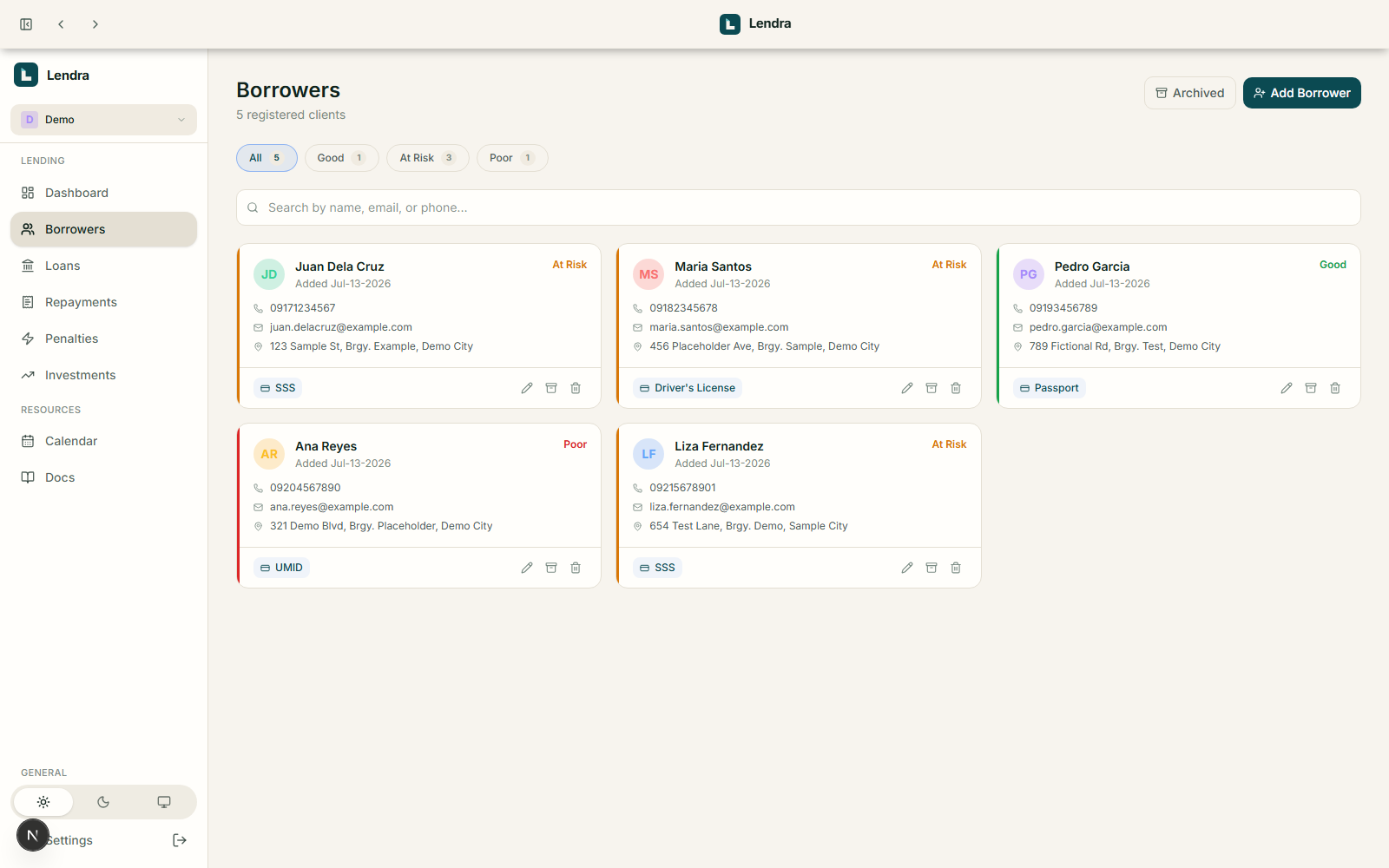
Add, edit, archive, and search borrowers.
Store ID type, ID number, employer, monthly income, and collateral notes.
Upload an ID document image, auto-renamed to LastName_FirstName_ID.ext.
Add a co-borrower (guarantor) with full info and their own ID image.
Every borrower carries a Loan Standing rating (Good, At Risk, or Poor) based on their on-time vs. missed payment ratio.
2. Loans
Configure a loan exactly the way you agreed it.
Open Loans → New Loan and pick the borrower.
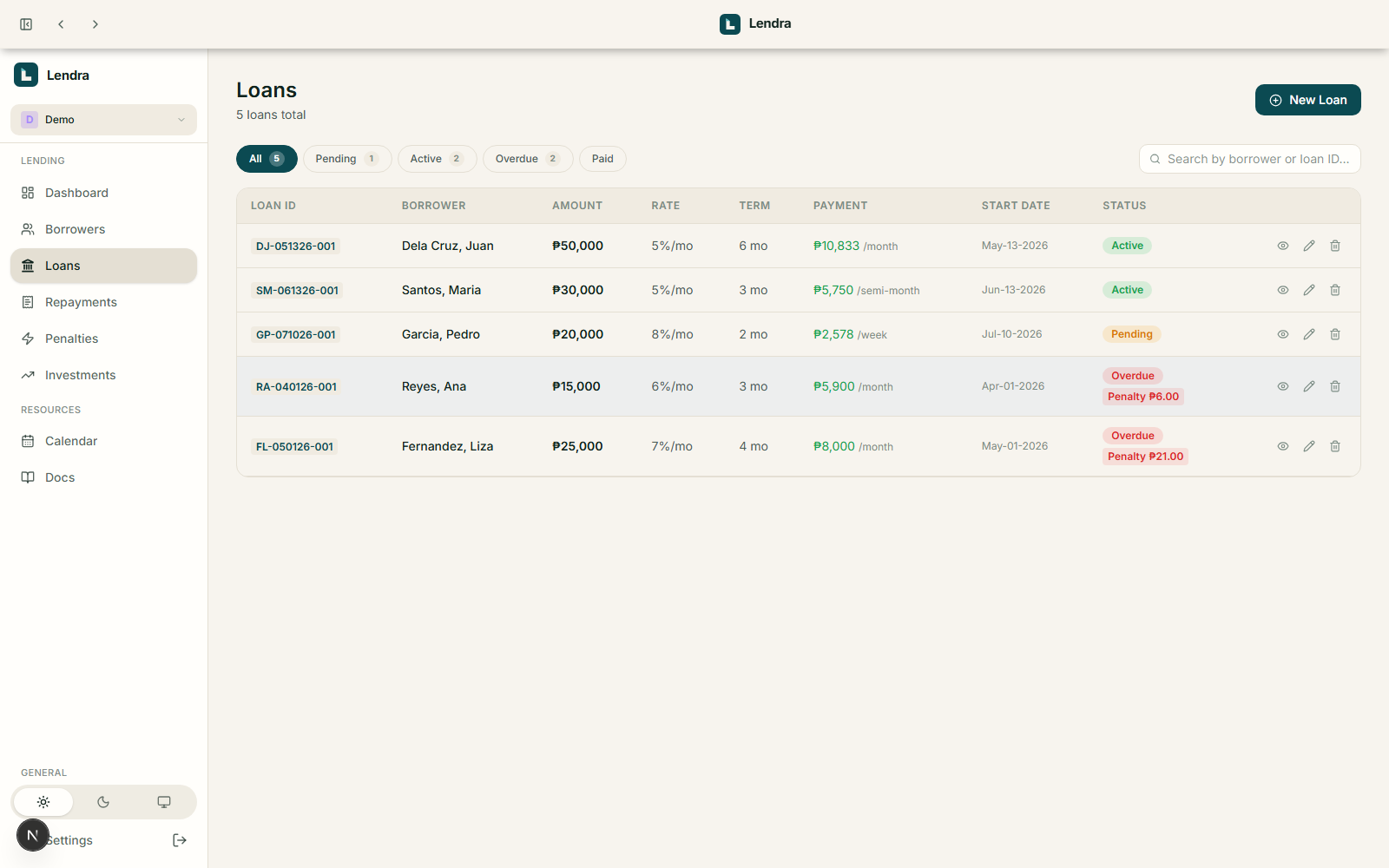
Set the amount, interest rate, payment frequency, and term, in months or days.
Choose a payment schedule: daily, weekly, semi-monthly, or monthly.
The loan moves through statuses automatically: Pending, Active, Overdue, Paid.
From a loan's detail page you can view its contract, print an account statement, and attach a signed contract, disbursement receipt, or collateral document.
3. Repayments
Record every payment with the right evidence attached.
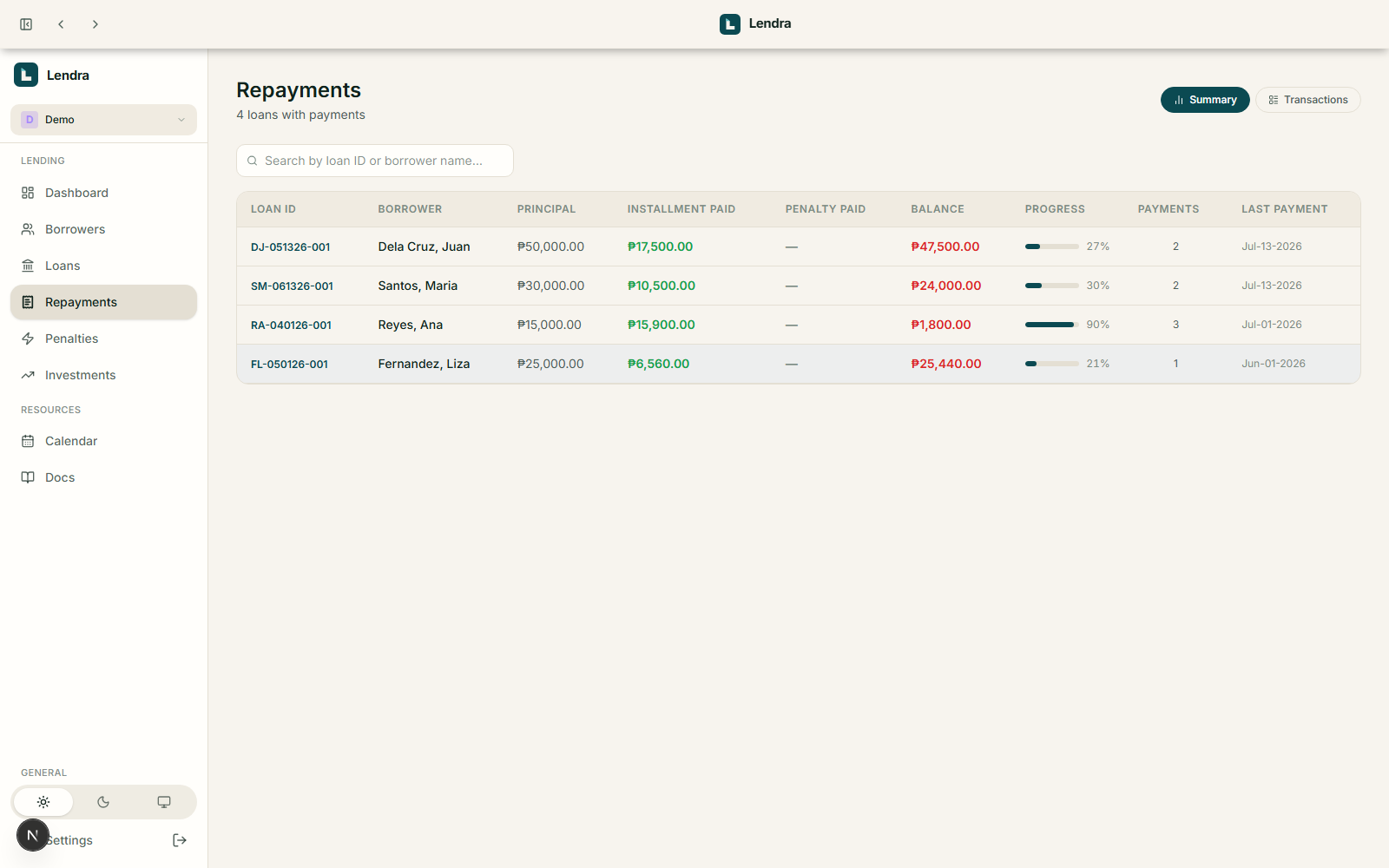
Log a payment with its transaction type: Cash, GCash, Bank Transfer, Cheque, or Online.
Attach a receipt image, auto-named to {LoanNumber}_receipt_{YYYYMMDD}.ext.
Use quick-fill cards to apply the exact expected payment amount without manual entry.
Review the full payment history per loan, including type and receipt columns.
4. Penalties
Late fees that calculate themselves.
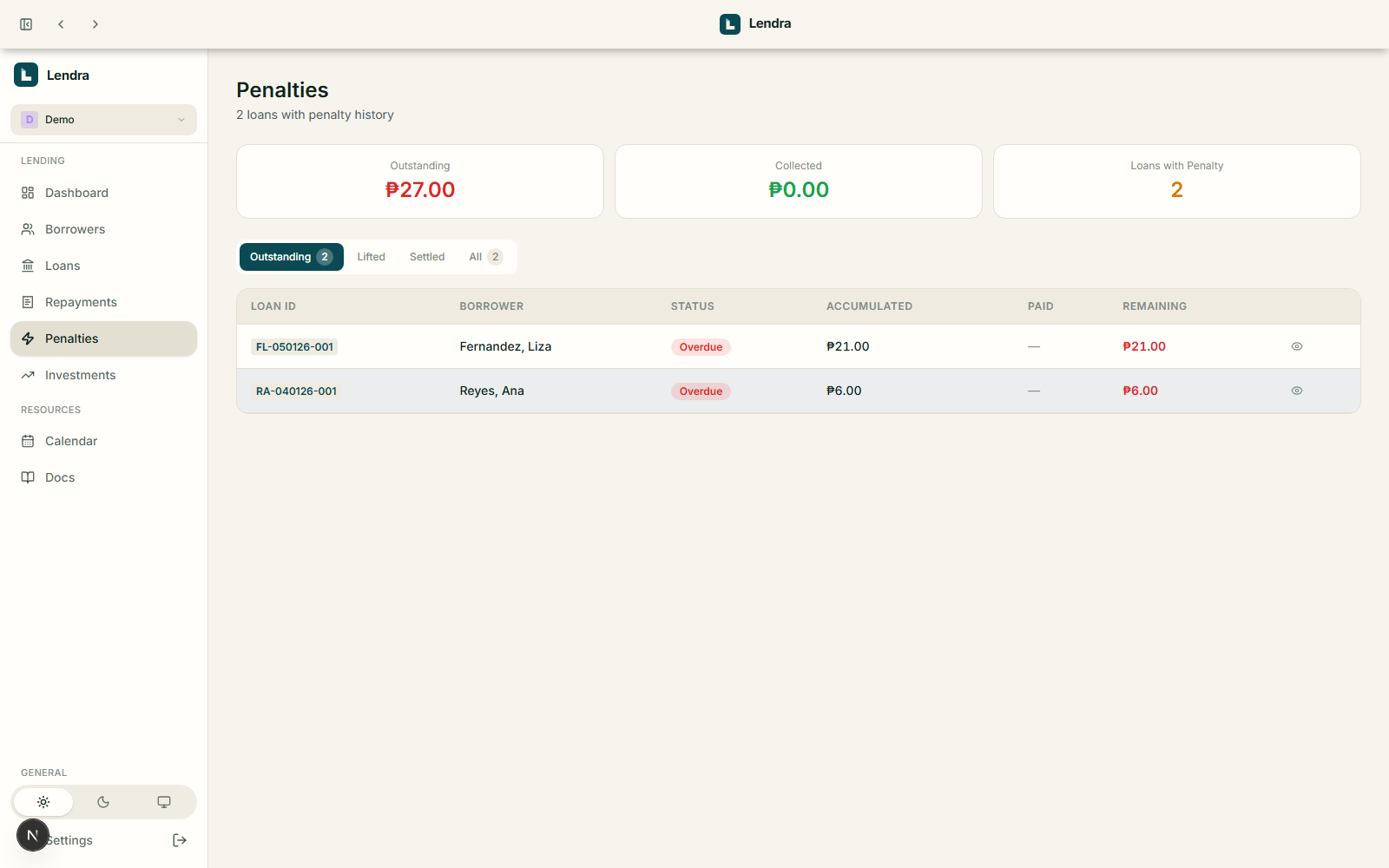
Set a daily penalty rate in Profile Settings, and any loan that misses a due date starts accruing automatically from that first missed date. The Penalties page lists every loan with penalty history, filterable by Outstanding, Settled, or All, with summary stats for total outstanding, collected, and loan count.
Per-loan breakdown: accumulated, paid, and remaining penalty.
The penalty banner on a loan's detail page itemizes period, due date, days overdue, and amount.
Penalty is snapshotted the moment a loan leaves overdue; the Collect button deducts it from the balance.
Lift Penalty waives it without collecting payment; the banner turns amber with a "Lifted" badge, and it's fully undoable.
When a daily rate is configured, a penalty clause is automatically added to printed loan contracts.
5. Calendar
See your entire collection schedule at once.
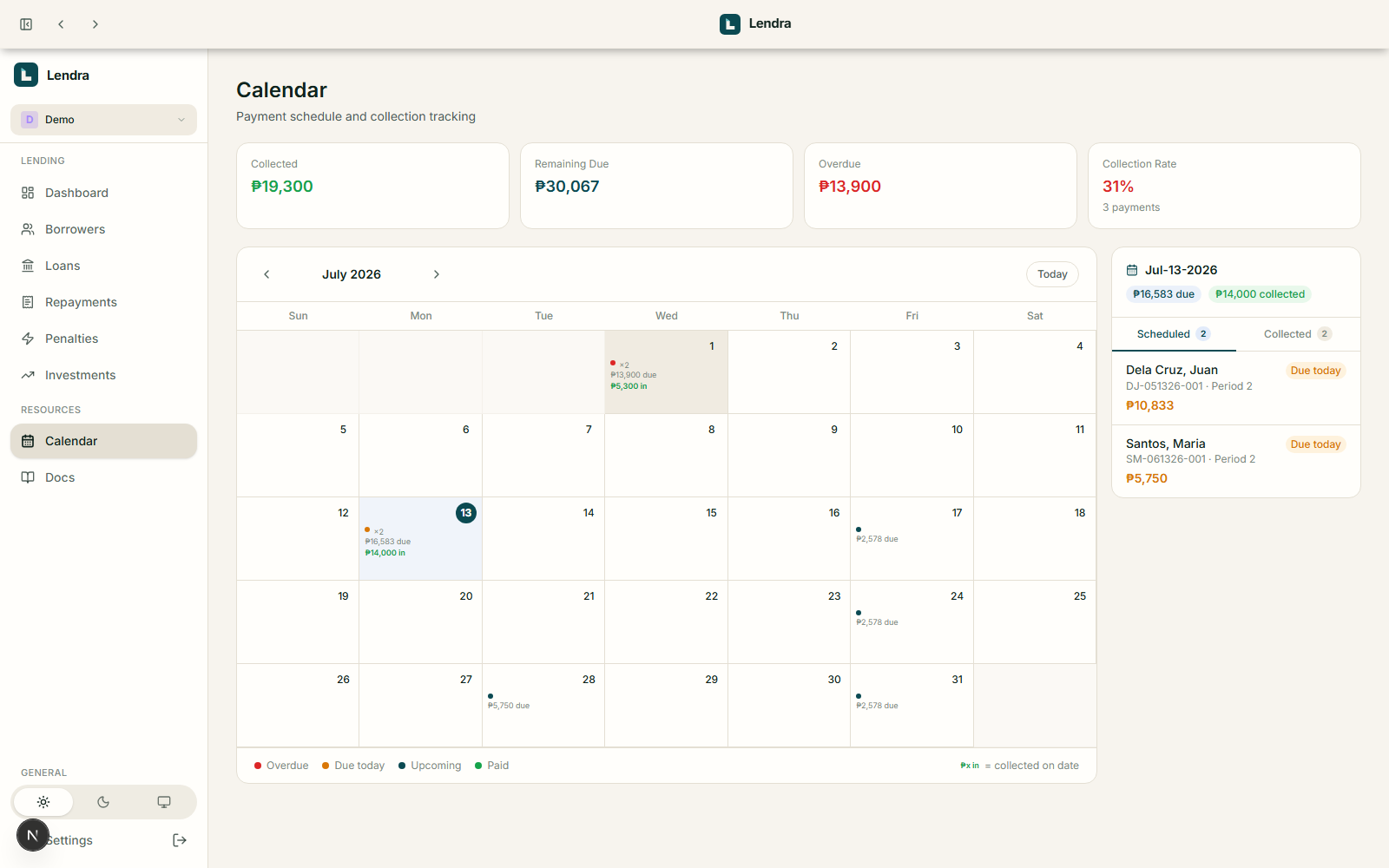
The Calendar page lays out the payment schedule across all active loans. Cells show actual amounts collected in green alongside amounts due, so a day that looks fully paid is obvious at a glance.
Click any day to open a detail panel with two tabs: Scheduled (due payments) and Collected (recorded payments).
A month summary shows Collected, Remaining Due, Overdue, and Collection Rate.
6. Investments
Track capital you've placed outside your loan book.
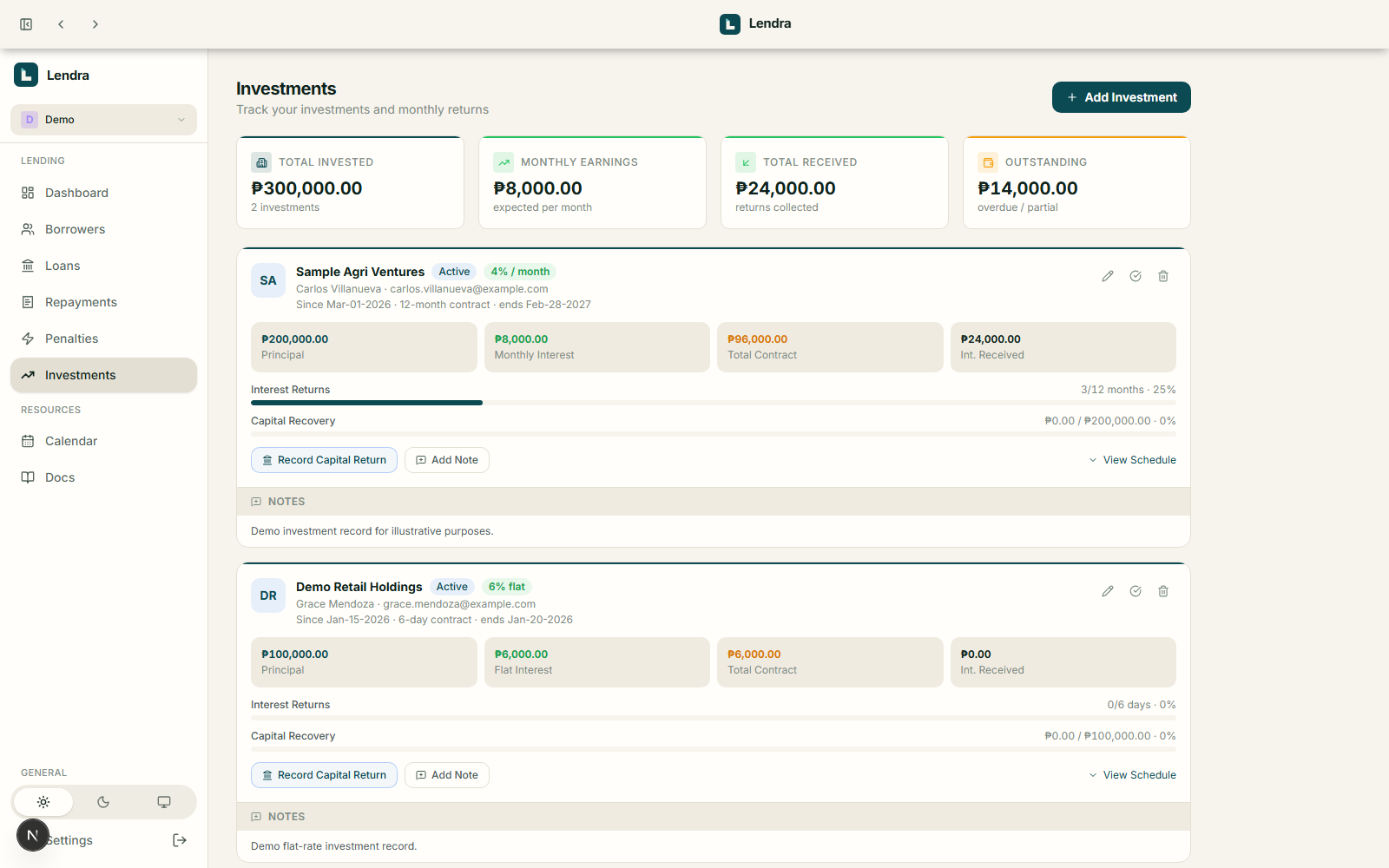
Investments are kept separate from loan borrowers, for money placed in external businesses or individuals. Choose between two contract types: Monthly Interest (a recurring monthly return) or Flat Rate (a single lump-sum interest at maturity).
Record interest returns per period and partial or full capital returns, tracked on a Capital Recovery progress bar.
Settle and reopen investments as agreements change.
Keep a dated notes log for conversations and agreements with the counterparty.
Summary cards show Total Invested, Monthly Earnings, Total Received, and Outstanding overdue amounts.
7. Printable Documents
Contracts and statements that print cleanly, every time.
Loan contract: carries your lender branding, auto-scales to fit one page, and card backgrounds render correctly in saved PDFs.
Account statement: full payment history for a loan, same reliable PDF rendering.
PDF filenames default to Contract - Name - LoanRef or SOA - Name - LoanRef when saving.
The contract terms editor in Settings lets you edit the clauses printed on every loan agreement.
Dashboard
Your whole book, organized by what matters right now.
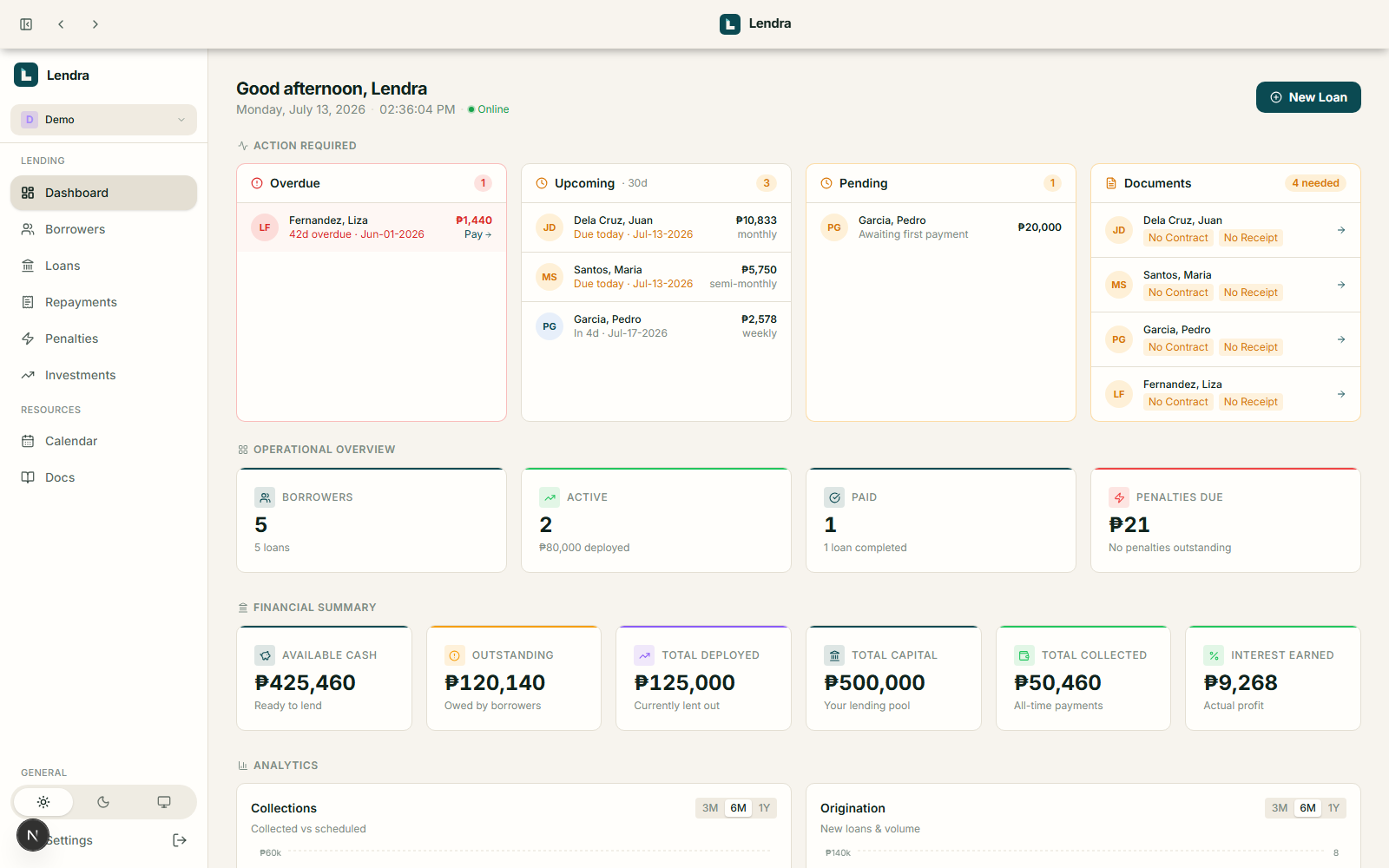
The dashboard is grouped by priority: Action Required (Overdue, Upcoming, Pending, Documents), Operational Overview (Borrowers, Active, Paid, Penalties Due), Financial Summary, and Analytics.
Financial Summary: Available Cash, Outstanding Balance, Total Deployed, Total Capital, Total Collected, Interest Earned. Available Cash is driven by the Starting Capital setting in Settings → Profile.
Portfolio by Amount donut chart: principal deployed by loan status.
Payment Methods donut chart: payment volume by transaction type.
Scrollable alert lists for overdue, upcoming, and pending payments.
Settings
Configure your lending book to match how you actually operate.
Profile Settings: lender name, address, and contact info printed on contracts and statements; currency (15 supported); logo and signature upload (JPG, PNG, SVG); customizable contract terms editor; daily penalty rate.
Uploads: JPEG and PNG uploads are automatically converted to WebP (quality 85), 30–50% smaller with no visible quality loss. Sideways photos are auto-corrected. PDFs and SVGs are stored as-is.
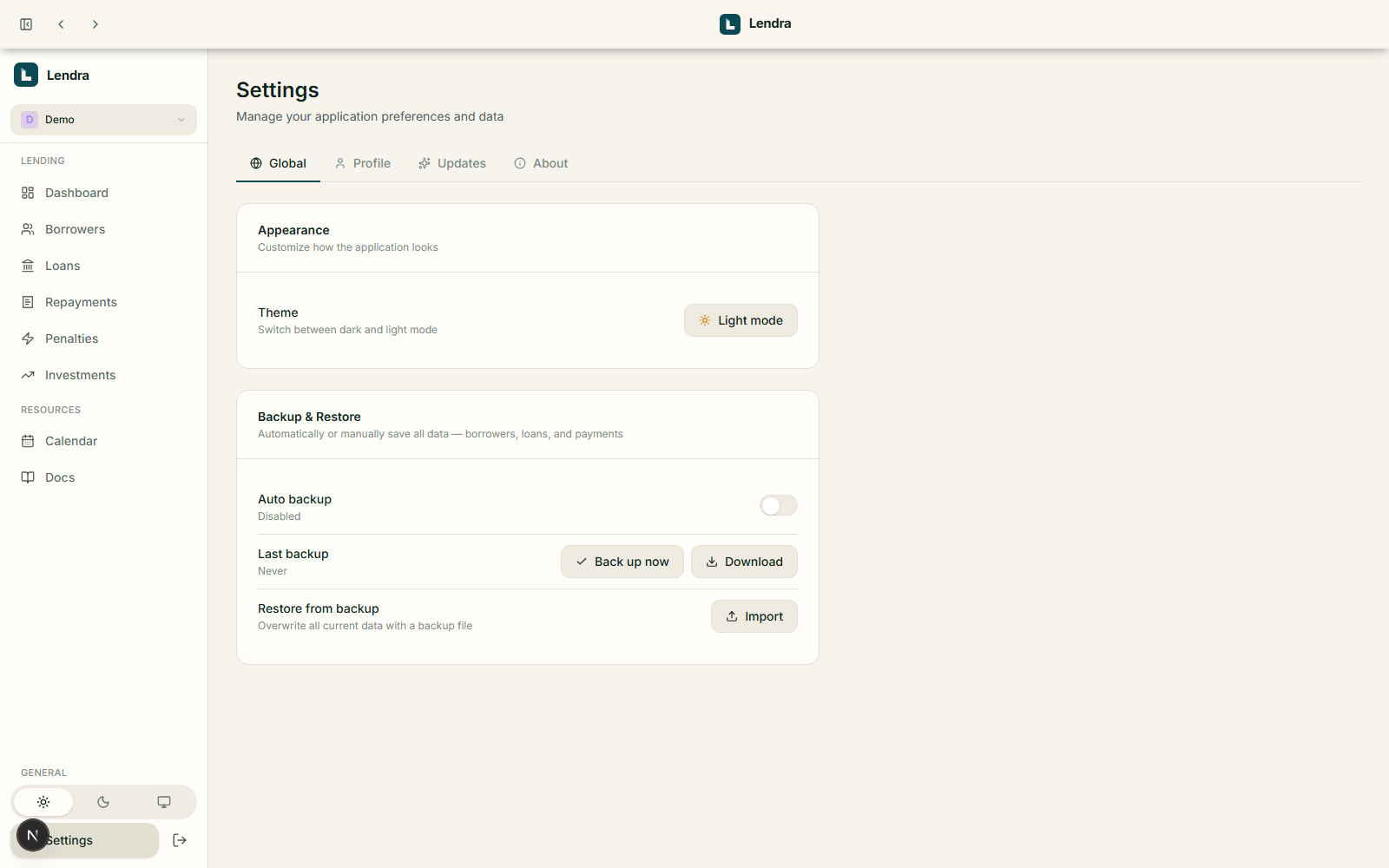
Appearance: light or dark theme.
Auto Backup: toggle on/off, choose how often it runs (5/15/30/60 minutes), and on desktop pick which folder backups save to.
Account: change admin username and password.
Danger Zone: delete all data (requires a prior backup and confirmation), or clean up orphaned uploaded files.
Backup & Restore
Your book, protected on your own terms.
Export a portable JSON backup any time from Settings → Backup & Restore, with every uploaded image (IDs, receipts, loan documents) embedded as base64 so a single file is a complete snapshot. Restore from any backup file at any time. Use Back Up Now to save a backup silently without downloading, or turn on Auto Backup to save one automatically on the interval you choose.
FAQ & Troubleshooting
Does my data leave my machine?
No. Lendra has no cloud dependency: data lives in a local SQLite database in your OS app-data folder, and nothing is uploaded anywhere.
What happens if I miss a payment?
The loan status moves to Overdue and, if a daily penalty rate is configured, a penalty starts accruing automatically from the first missed due date.
Can I run more than one lending book?
Yes. Create additional profiles, each with its own isolated borrowers, loans, and settings.
Is there a login screen?
No. Lendra is built for a single operator and opens straight to a welcome screen, then the dashboard.
Does Lendra send reminders to borrowers, or collect payments for me?
No. Unlike some collection apps, Lendra doesn't send automated email, SMS, or call reminders, and it doesn't process payments or generate payment links. It surfaces upcoming and overdue payments on your dashboard and calendar, but following up with a borrower and collecting the money are still on you. See the About page for the full list of what Lendra intentionally doesn't do.
 Lendra